
Birdseye Documentation
The comprehensive guide to setting up and customizing the ultimate React 19 & Node.js Enterprise Admin Dashboard.
Introduction
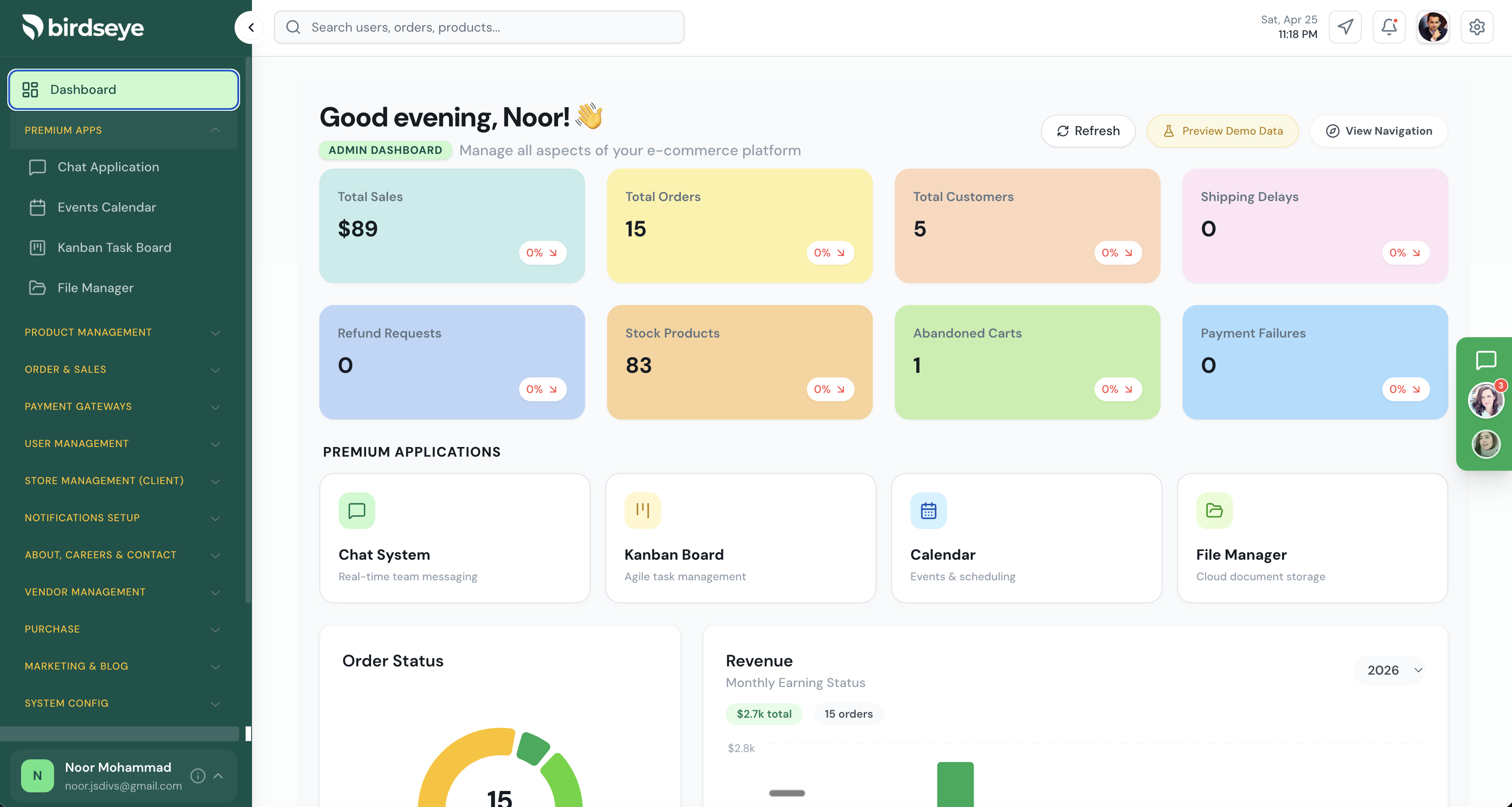
Welcome to the Birdseye Admin Dashboard documentation. Birdseye is not just another template; it is a premium, production-ready full-stack ecosystem engineered for enterprise scale. Designed with meticulous attention to detail, it bridges the gap between stunning frontend aesthetics and a highly secure, performant backend architecture.
Modern Frontend
Built on React 19 and Vite. Features Zustand for state management, Tailwind CSS for styling, and highly modular components tailored for high-frequency data displays.
Robust Backend
Powered by Node.js and Express. Fully typed with TypeScript, utilizing MongoDB with Mongoose, and featuring secure JWT/Firebase authentication layers.
Turborepo Powered
Orchestrated via Turborepo to provide ultra-fast parallel builds, shared caching, and an incredibly smooth developer experience out of the box.
Key Features & Resources
Birdseye comes packed with everything you need to launch a production-grade SaaS application or enterprise internal tool. Our light-theme focused UI provides maximum clarity and data legibility.
Dual Authentication System
Secure JSON Web Tokens (JWT) combined with Firebase Admin SDK for robust, spoof-proof Google OAuth login.
E-Commerce Ready
Built-in Stripe integration with secure webhook handling, dynamic order tracking, and vendor profit commission logic.
Advanced File Management
Seamless integration with Cloudinary and ImageKit for high-performance media uploading and asset organization.
Interactive Analytics
Beautiful, responsive charts powered by Recharts, complete with dummy data toggles for rapid prototyping.
Monorepo Architecture
Birdseye utilizes a modern monorepo structure. Unlike traditional setups where the frontend and backend live in entirely separate repositories, Birdseye unifies them using Turborepo. This approach is highly favored by industry leaders because it allows you to manage the client and server side-by-side, sharing scripts, types, and ensuring version parity across your entire stack.
birdseye-themeforest/
├── apps/                 # The core applications
│   ├── admin/            # React 19 Client Dashboard (Frontend)
│   │   ├── src/
│   │   │   ├── components/ # Scalable UI and Layout wrappers
│   │   │   ├── pages/      # Application views (Analytics, Users, etc.)
│   │   │   ├── store/      # Zustand state slices
│   │   │   └── utils/      # Helpers and Hooks
│   │   ├── package.json
│   │   └── vite.config.ts
│   └── api/              # Node.js Express Server (Backend)
│       ├── controllers/  # Route business logic (Auth, Users, Stripe)
│       ├── models/       # Mongoose schemas (MongoDB)
│       ├── routes/       # Express endpoint definitions
│       ├── server.ts     # Main entry point
│       └── package.json
├── turbo.json            # Turborepo pipeline configuration
└── pnpm-workspace.yaml   # Workspace dependency mapping
The workspace acts as a single source of truth. Running a command
like build at the root level tells Turborepo to
analyze the dependency graph and build apps/admin and
apps/api intelligently, leveraging cached assets to
drastically reduce build times.
Installation & Setup
Prerequisites
- Node.js: v18.0.0 or higher.
- Database: A MongoDB cluster (MongoDB Atlas recommended).
- Accounts: Stripe, Firebase, Cloudinary, and ImageKit accounts for full functionality.
Step 1: Unzip the Package
Extract the downloaded ThemeForest ZIP file and open the root
directory (birdseye-themeforest) in your preferred
code editor (e.g., VS Code).
Step 2: Install Dependencies
Birdseye is configured to use pnpm by default for maximum speed and strict dependency resolution. However, we have ensured compatibility across all major package managers. Choose the one that fits your workflow:
The fastest and most efficient workspace manager.
pnpm install
The standard Node.js package manager.
Widely used alternative manager.
yarn install
The new, ultra-fast JavaScript runtime.
bun install
Note for non-pnpm users: If you use npm, yarn,
or bun, ensure you delete the pnpm-lock.yaml file
before running the install command to prevent lockfile
conflicts.
Backend Configuration (.env)
The Express server requires several environmental keys to function
correctly. Navigate to apps/api/, duplicate
.env.example, and rename it to .env.
| Variable | Description |
|---|---|
| PORT |
The port the server will run on (Default:
8000).
|
| MONGO_URI |
Your MongoDB connection string. Essential for database
operations. (e.g. mongodb+srv://...)
|
| JWT_SECRET | A strong, random 256-bit string used to sign JSON Web Tokens. Do not share this. |
|
STRIPE_SECRET_KEY STRIPE_WEBHOOK_SECRET |
Your Stripe API credentials required for processing e-commerce payments securely. The Webhook secret is necessary to verify real-time payment events. |
|
ADMIN_URL CLIENT_URL |
CORS configuration. Controls which domains are allowed to
talk to the backend. Usually
http://localhost:5173 in local development.
|
|
IMAGEKIT_* CLOUDINARY_* |
API keys for your image hosting services. The File Manager and User Profile modules heavily rely on these configurations for media upload and optimization. |
| SMTP_* | SMTP credentials (e.g., Gmail, SendGrid, Amazon SES) used for sending system emails, password resets, and notifications. |
| FIREBASE_PROJECT_ID | Used by the Firebase Admin SDK to cryptographically verify OAuth tokens on the server, ensuring completely secure Google Authentication. |
Frontend Configuration (.env)
The React 19 Client requires its own configuration to connect to
the backend and external APIs. Navigate to
apps/admin/, duplicate .env.example, and
rename it to .env.
| Variable | Description |
|---|---|
| VITE_API_URL |
The base URL pointing to your Node.js API (Default:
http://localhost:8000). In production, this
will be your deployed backend URL.
|
| VITE_FIREBASE_* | Your Firebase Web Client configuration keys. This is absolutely required to enable Google OAuth login and Firebase authentication features in the dashboard. |
| VITE_SHOW_DUMMY_DATA |
Set to true to populate the dashboard tables
with visual dummy data before you have real database
entries. Helpful for initial UI testing and presentation.
|
Running the Application
Once your dependencies are installed and both
.env files are configured, starting the development
environment is incredibly simple thanks to Turborepo. Depending on
your chosen package manager, run the corresponding command from
the root directory:
pnpm dev # Or npm run dev, yarn dev, bun devThis single command will intelligently start both the Express backend API and the Vite React frontend in parallel. You will see output from both processes in your terminal.
Admin Dashboard (Client)
http://localhost:5173Express API (Server)
http://localhost:8000Deployment Guide
Deploying a monorepo is straightforward once you understand how the two pieces—frontend and backend—connect in production.
Frontend (Vercel / Netlify)
The React 19 admin dashboard compiles into static HTML/CSS/JS via Vite. It is best deployed to static hosting providers.
-
1. Vercel Configuration
Import your repository. In the Project Settings, specify the Root Directory as
apps/admin.The Framework Preset will automatically detect Vite. Add all your
VITE_environment variables, ensuringVITE_API_URLpoints to your deployed backend URL. -
2. Netlify Configuration
Similar to Vercel, set the Base Directory to
apps/admin. Build command:npm run build(or pnpm), Publish directory:dist. Ensure you configure redirect rules for SPA routing.
Backend (Render / Heroku)
The Express API requires a Node.js runtime environment. Platforms like Render or Heroku are perfect for this.
-
1. Render Configuration
Create a new "Web Service". Connect your repository. Set the Root Directory to
apps/api.Build Command:
npm install && npm run build
Start Command:npm start -
2. Environment Security
In your backend platform settings, you must add all production `.env` keys. Most importantly, update
CLIENT_URLandADMIN_URLto match your Vercel/Netlify frontend domain to prevent CORS blocks.
Combining the Experience
The magic happens via environment variables. By ensuring the
frontend's VITE_API_URL is strictly set to your
deployed backend (e.g. Render), and the backend's
CLIENT_URL is strictly set to your Vercel frontend,
the two applications securely communicate as a unified
full-stack platform.
Support & Resources
Need Help?
If you experience any issues configuring Birdseye, or have any pre-sale questions, please reach out to us through our ThemeForest profile or via our official channels.